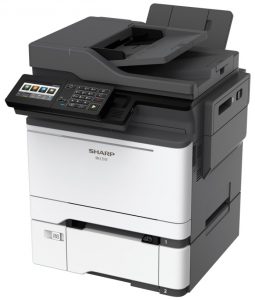
Sharp MX-B450P Driver Download & Software for Windows, Mac – The Sharp MX-B450P compact A4 printer brings you fast, convenient printing with output speeds of 45ppm with all the speed and efficiency you’d expect from a larger device, but small enough to be used wherever you need.
The Sharp MX-B450P printer has a large 1,150 sheet capacity (with additional paper tray). But the standard paper tray, as well as multi bypass tray, accommodates a wide variety of paper sizes, including A6, and media up to 220gsm.
The Sharp MX-B450P also includes a range of easy-to-use features:
a 5-line LCD control panel that provides clear and concise information;
printer driver setup window with large buttons and dropdown menus, so you can quickly find the right functions;
a USB port on the front which means you can instantly print from or scan to a USB drive.
How to Install Sharp MX-B450P For Windows
- Click the Printer Driver button.
- Click the Standard installation button.
- Printers connected to the network are detected. Select the machine & click the Next button.
- A confirmation window appears. Check the contents & then click the Next button.
- Follow the on-screen instructions.
[Note]
- If you are using Windows Vista, Server 2008, 7, 8, and Server 2012, be sure to click Install this driver software anyway.
- If you are using Windows XP, Server 2003, be sure to click the Continue Anyway or Yes button.
- When the installation completed screen appears, click the OK button.
- Click the Close button in the window
How to Uninstall Sharp MX-B450P Windows
- Click the start button & then click Control Panel.
- Click Uninstall a program.
- Choose the program or driver that you wish to delete.
- Restart your computer.
How to Install Sharp MX-B450P For Mac OS
- Insert the “Software CD-ROM” into your computer’s CD-ROM drive.
- Double-click the CD-ROM icon on the desktop.
- Double-click the MacOSX folder
- Then, Double-click the folder corresponding to the versions of the operating system.
- Double-click the MX-C42 icon
- Click the Continue button.
- The License Agreement window will appear. Make sure that you understand the contents of the license agreement and then click the Continue button.
- Click the [Install] button.
- When the installation completed screen appears, click the Close button.
- Click System Preference in the Apple menu and select Print & Scan.
- Click the + button and select “XXXX”.
- Configure the printer driver.
- Click the Option & Supplies button & click the Driver tab.
- Then, Click the Default icon.
- Click the machine’s model name.
- Choose the PPD file of your model.
- Click the Add button.
- Select the machine configuration.
- Choose the options that are installed on the machine.
- Click the OK button.
- Click to close the window.
Supported Operating System
- Windows 11, 10, 8, 8.1, 7. Windows Server 2022, 2019, 2016, 2012 R2/2012, 2008
- macOS 12, macOS 11, macOS 10.15, macOS 10.14, macOS 10.13, macOS 10.12, OS X 10.11, OS X 10.10, OS X 10.11, OS X 10.10
Sharp MX-B450P Driver & Downloads
[ Download ] ↔ Sharp MX-B450P Driver Windows 64-bit
[ Download ] ↔ Sharp MX-B450P Driver Windows 32-bit
[ Download ] ↔ Sharp MX-B450P Scanner Driver Windows
[ Download ] ↔ Sharp MX-B450P Driver Mac
Sharp MX-B450P Printer Driver Download ↔ Sharp Official Site